
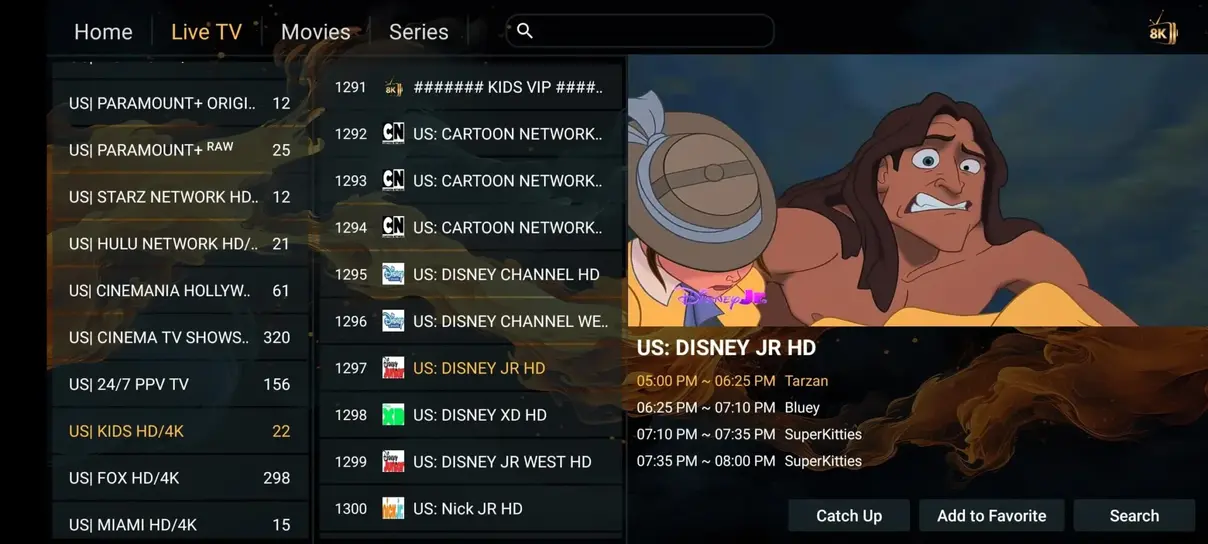
Why the Amazon Firestick is the Ideal IPTV Device
The Amazon Fire TV Stick (particularly the 4K and 4K Max editions) is widely recognized as the most reliable and affordable streaming stick for high-definition IPTV. With dedicated hardware support for AV1, HEVC/H.265, and Dolby Vision, it decodes high-bitrate live sports feeds without frame dropping.
Step 1: Enabling Developer Options on Firestick
To install custom IPTV players, enable app installation permissions:
- Navigate to Settings → My Fire TV → About.
- Highlight Fire TV Stick and click the center remote button 7 times until you see “No need, you are already a developer.”
- Go back one screen to Developer Options and turn on Install Unknown Apps.
Step 2: Installing Downloader from Amazon Appstore
Search for “Downloader” in the Amazon Appstore and install the official orange icon app.
Step 3: Downloading Your Preferred IPTV App
Open Downloader and enter the direct URL or shortcode for IPTV Smarters Pro or TiviMate. Once downloaded, click Install.
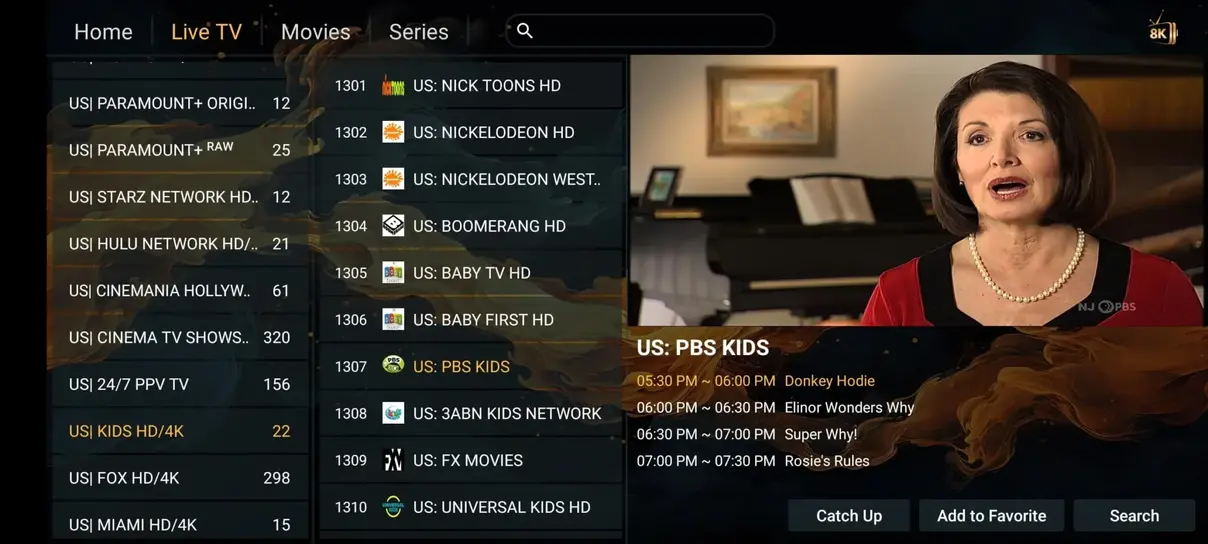
Step 4: Connecting Your basta iptv sverige Subscription
Open the app and choose Login with Xtream Codes API. Enter the credentials received after ordering from our pricing page. For additional device guides, consult our complete installation guide.